
COMPVTER EXTREMISM: Installing Windows 98 on DOSBox-X (M-chip Mac)
A quick guide to running Windows 98 SE on your Apple Silicon Mac using DOSBox-X.

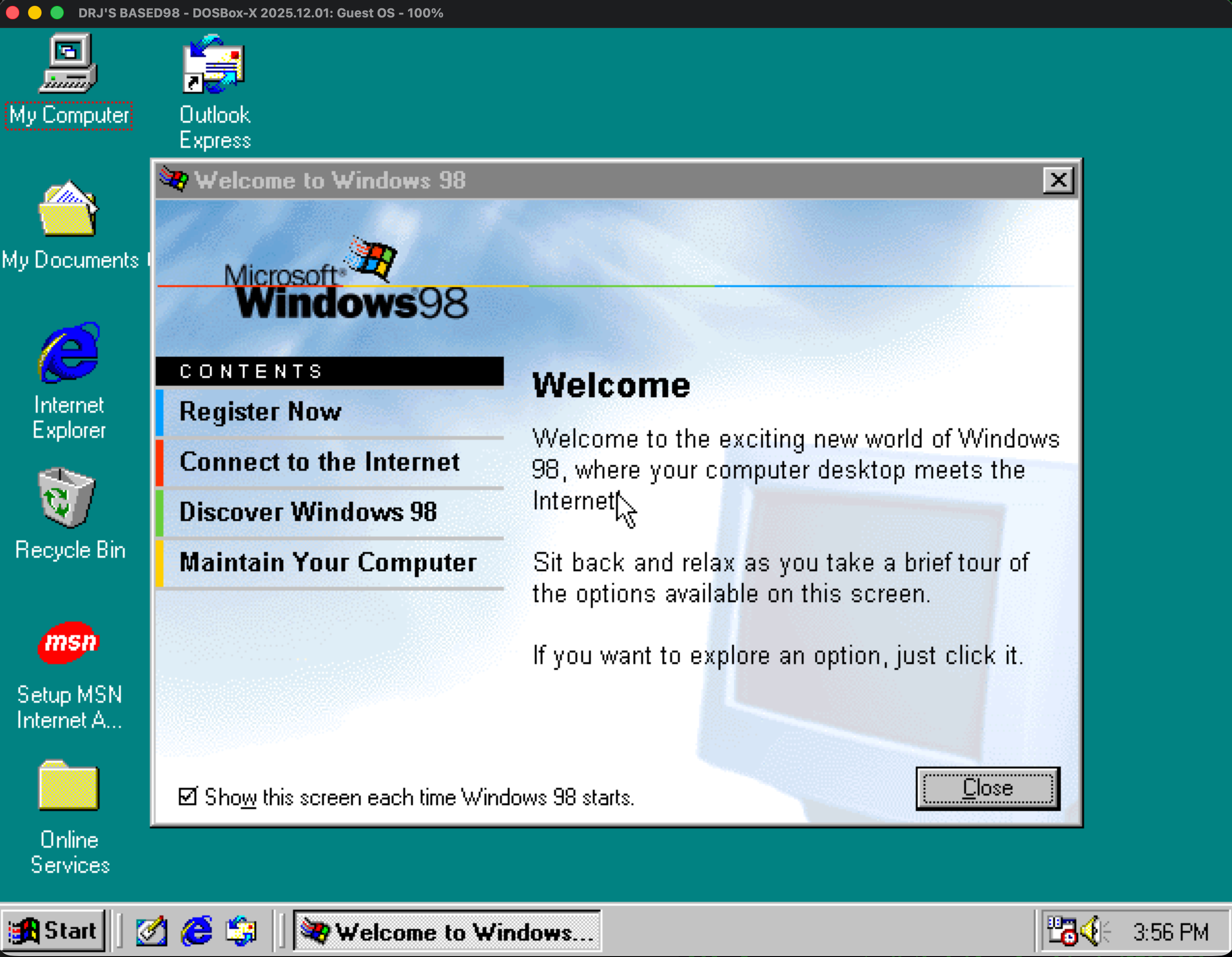
What You Need
DOSBox-X: Install via Homebrew with
brew install dosbox-xWindows 98 SE ISO: Download from Internet Archive
Product Key:
B8MFR-CFTGQ-C9PBW-VHG3J-3R3YW
Setup
1. Create Your Config File
Save the following as win98.conf in your working directory:
[sdl]
output=opengl
windowresolution=1280x960
fullresolution=desktop
display window maximized=false

[dosbox]
title=Windows 98
memsize=512

[video]
vmemsize=8
vesa modelist width limit=0
vesa modelist height limit=0

[dos]
ver=7.1
hard drive data rate limit=0
floppy drive data rate limit=0

[cpu]
cputype=pentium_mmx
core=normal

[sblaster]
sbtype=sb16vibra

[fdc, primary]
int13fakev86io=true

[ide, primary]
int13fakeio=true
int13fakev86io=true

[ide, secondary]
int13fakeio=true
int13fakev86io=true
cd-rom insertion delay=4000

[render]
scaler=normal2x forced
aspect=true

[autoexec]
IMGMOUNT C hdd.img
IMGMOUNT D win98cd.iso
BOOT C:
2. Create a Hard Disk Image
Launch DOSBox-X and create an 8GB disk image:
dosbox-x -conf win98.conf
IMGMAKE hdd.img -t hd_8gig
3. Install Windows 98
Mount your drives and copy the installation files:
IMGMOUNT C hdd.img
IMGMOUNT D win98cd.iso
XCOPY D:\WIN98 C:\WIN98 /I /E
C:
CD \WIN98
SETUP
Pro tip: Toggle turbo mode with the backtick key (`) to speed through file copying.
4. After First Reboot
When Windows reboots and you land back at the Z:\ prompt, exit DOSBox-X and restart it with the same command. The [autoexec] section in your config handles mounting and booting automatically.
dosbox-x -conf win98.conf
The graphical setup will continue. You may need to restart DOSBox-X a few times as Windows completes installation.
Running Windows 98
Once installed, just run:
dosbox-x -conf win98.conf